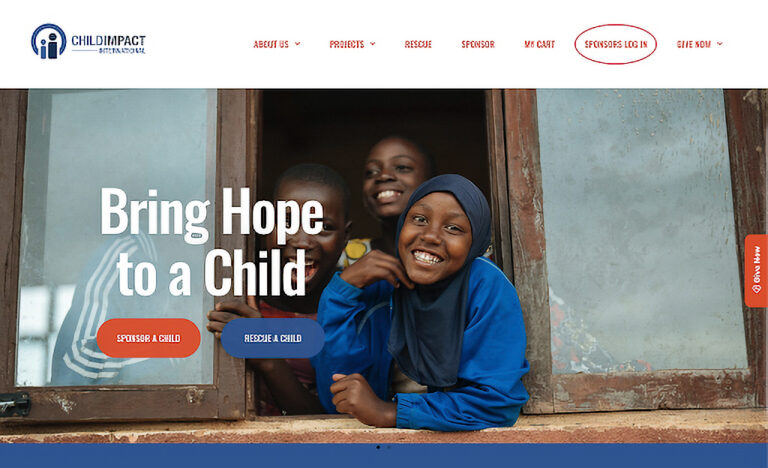
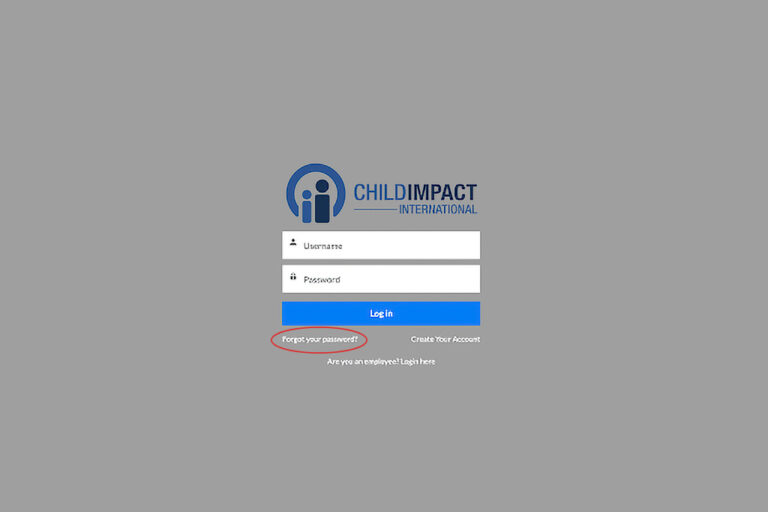
Go to childimpact.org and click on the link “Sponsors Log In” at the top menu.
If you don’t recall setting up your account or receiving an email that our office enabled your account already, click the link “Create Your Account.”
Please enter the email address you receive Child Impact communications through and then click “Next.” You will receive an email from “help@childimpact.org via salesforce.com.” If you do not see the email in your inbox within five minutes, please check your spam/junk email folder. The email will have a link to set up your password for the first time. Click the link and follow the steps.
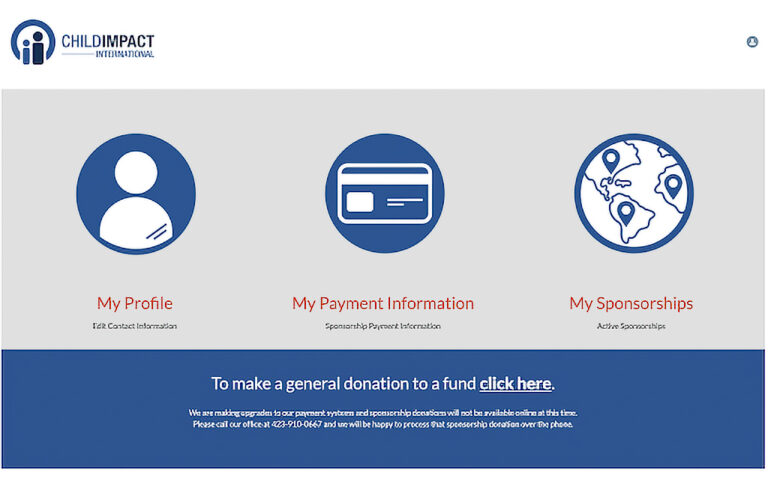
Once you log in, the main page will look like this.
After clicking “My Profile” you can change your name, contact information, and contact preferences.
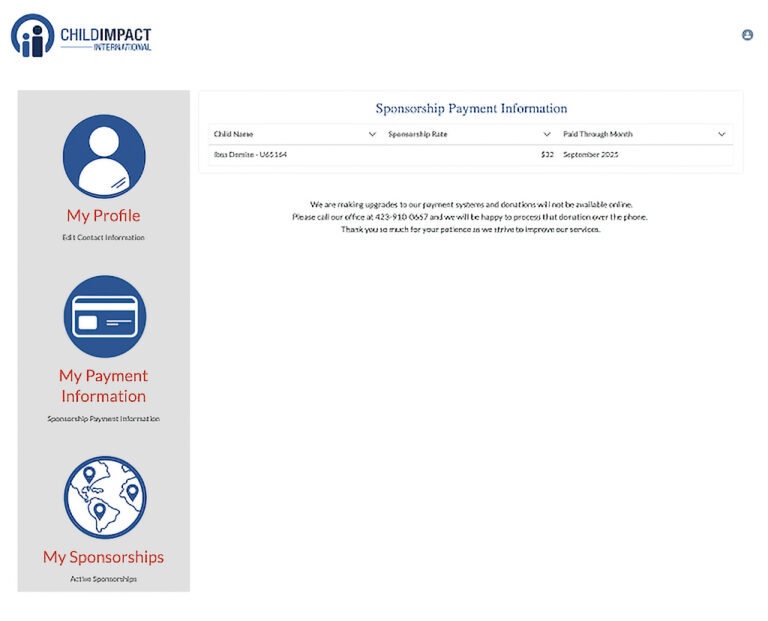
When you click “My Payment Information” you can see which students you are sponsoring, their rate, and what date your sponsorship is paid through.
On the “My Sponsorships” page, you’ll see a photo of all currently sponsored students with their name. Click on their name for more options.
After clicking their name, you’ll see the basic information about that student. There are two important buttons at the bottom, “Send Letter to Student” and “View Student Files.”
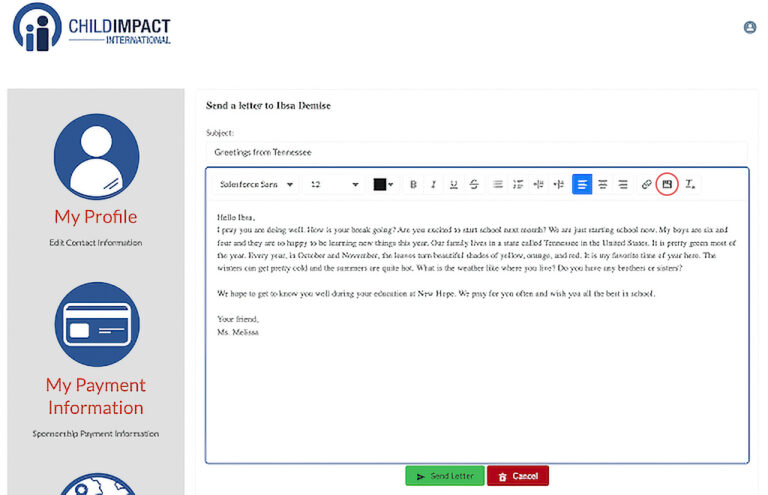
When you click on “Send Letter to Student,” you can enter your subject line at the top and then type in the main body for your letter. There is an icon at the top right of the page which will allow you to add a photo to your letter. Our office will review your letter, then send it to the sponsorship coordinator for your student’s school. The sponsorship coordinator will print out your letter and deliver it to the student.
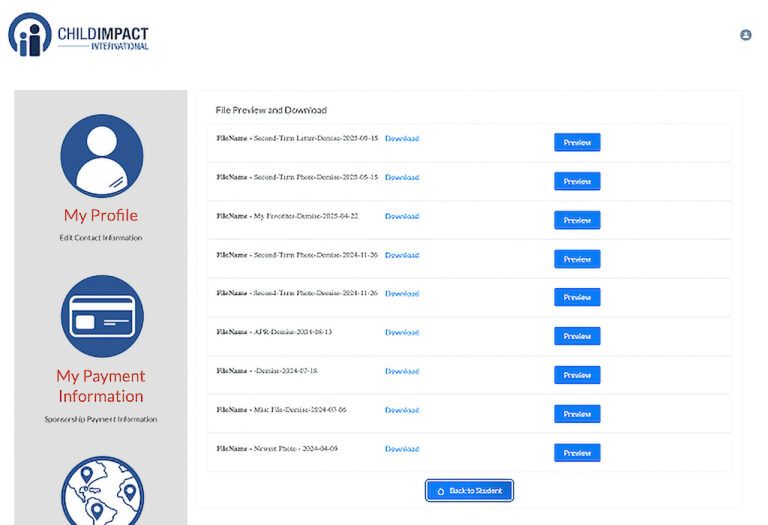
When you click on “View Student Files,” you can see all the student’s photos and annual progress reports (APRs), as well as letters they have sent to you. You can download any of the files to print or share digitally with your friends and family. Most of the recent photos are sized to 5×7 if you would like to print those.
Forgot Your Password?
If you already have an account, your email is typically your username, and you can enter your password here. If you need to reset your password, click the link “Forgot your password?” and you will receive an email from Child Impact with further instructions.
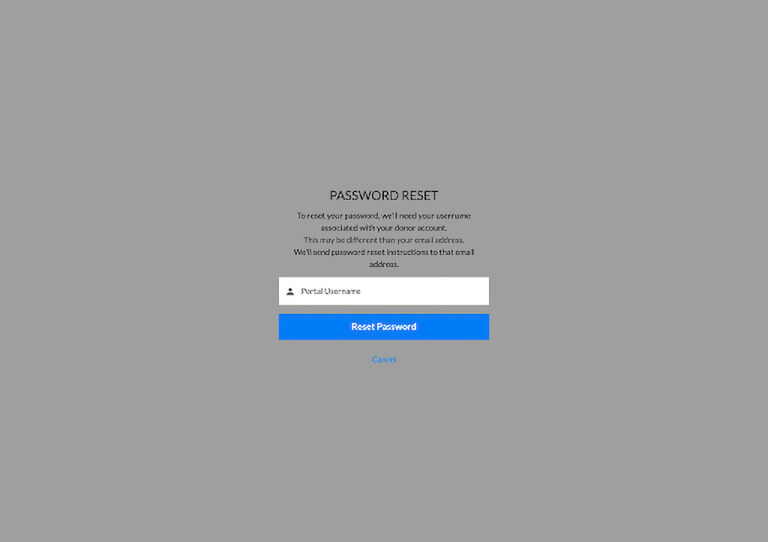
After clicking “Forgot your password?”, enter the email address you receive all Child Impact communications from. You’ll receive an email to reset your password with a long link at the bottom.
Here is the type of email you will receive for resetting your password. Click the long link at the bottom and follow the steps.